
EpsteinWiki / Fact Checking Desk
Check before you share.
A claim, an image, a name in a document. Start here to find the source, check the context and see what the evidence actually supports.
Public tools. Plain-language instructions.
Source-linked fact-check reports.
Where did this image come from?
Use Epstein Data’s reverse image search to look for matching or similar images in its index. Start with the full image, then follow any result back to the document.
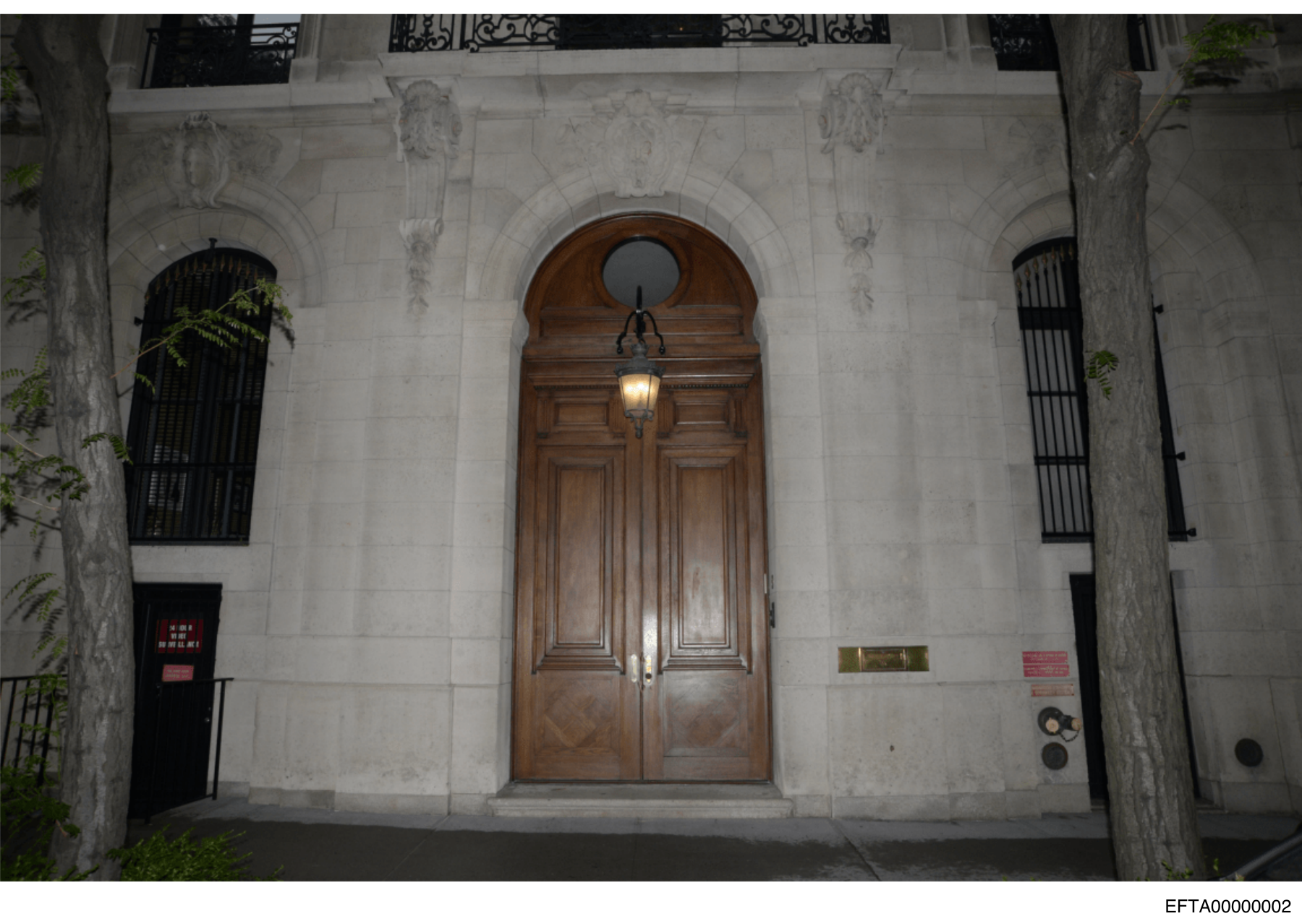
Choose your image
Keep the original. Use the clearest version you have. The tool accepts JPEG, PNG and WebP files up to 25 MB.
Example: a public photo being shared as a screenshot. If needed, crop social-media borders on your own device, while keeping the original for comparison.
Run the lookup
Open the tool below. Choose Image / Scene Search, upload or paste the image, then select Search.
The external site may show a content warning or age check. Read its terms before using it.
Open the evidence
Open a promising result thumbnail. Check the EFTA number, source PDF and page. Compare the whole image and read the surrounding pages.
A similarity score is a lead. It does not authenticate a photograph or identify a person.
Opens an independent external service. An upload sends your image to that service. Use public, non-sensitive material and protect victims’ privacy.
“Are they involved?”
Start with the record.
Search a name in Are They Involved’s public search. Use the results to locate records and distinguish a mention from evidence of a specific action.
Open free name searchExternal public search; no paid API or subscription is needed for this link. Availability and terms are controlled by the service.
How to use the search
- Enter the full name. Open the tool and type the person’s name. Try documented spelling variants if needed.
- Read each result’s context. Open the cited source document and page, rather than relying only on a snippet or summary.
- Verify the identity. Compare names, dates, roles and other identifying context. Different people can share a name.
Example: a result for “Jeffrey Epstein” should still be checked against its original record. Search results can contain incidental mentions, errors or allegations.
Latest Wiki fact checks
The six newest published articles in EpsteinWiki’s Fact Checks category, ordered by publication date. Open a report for its evidence, sources and explanation.
-
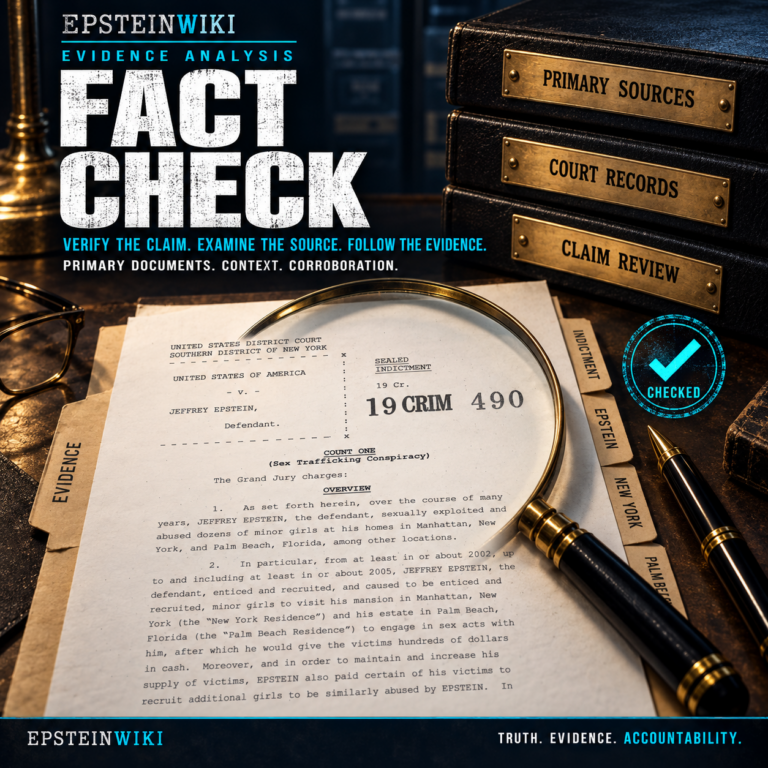
Fact Check: Viral Glass Water Tank Torture Video Is Not From Epstein Island
Read the fact check →: Fact Check: Viral Glass Water Tank Torture Video Is Not From Epstein Island -
Fact Check: AI Image Does Not Show Ursula von der Leyen With Jeffrey Epstein
Read the fact check →: Fact Check: AI Image Does Not Show Ursula von der Leyen With Jeffrey Epstein -
Fake AI Images Falsely Show Donald Trump and Jeffrey Epstein on a Yacht in 1985
Read the fact check →: Fake AI Images Falsely Show Donald Trump and Jeffrey Epstein on a Yacht in 1985 -
The Complete Fact Check of Jes Staley’s Congressional Testimony About Jeffrey Epstein
Read the fact check →: The Complete Fact Check of Jes Staley’s Congressional Testimony About Jeffrey Epstein -
Debunked Theory: Video Showing Young Girls on Epstein Island
Read the fact check →: Debunked Theory: Video Showing Young Girls on Epstein Island -
Debunked Theory: Erika Kirk Epstein Files Audio
Read the fact check →: Debunked Theory: Erika Kirk Epstein Files Audio
Find the original. Keep the context.
These starting points are free to browse. Independent indexes and archives help locate material; always check the underlying document and its limits.
Look up an EFTA number
Enter: the complete EFTA identifier exactly as printed on the document, for example EFTA followed by its digits.
Then: open the document, locate the cited page and read the pages around it. Save the identifier and page number with your notes.
Limit: Epstein Data is an independent search aid. Its AI-generated analysis may contain errors; check the source PDF.
Open EFTA lookup ↗Check the DOJ library
Enter: a document reference or relevant keyword in the official library’s search, or browse the release collections.
Then: compare the actual released file with the image, quotation or description you are checking.
Limit: handwriting and some formats may not be searchable. Sensitive-content notices and an age check may appear.
Open DOJ Epstein Library ↗Check an older version
Enter: the original webpage URL in the Wayback Machine. Choose a date and then a capture.
Then: compare the captured page with the current claim. Record both the original URL and the capture date.
Limit: captures can be absent or incomplete. An archived page shows what was captured, not whether every statement was true.
Open Wayback Machine ↗Find a filing in RECAP
Enter: a case name or docket number in CourtListener’s RECAP search.
Then: choose the matching court and case, open the available filing and record its docket entry and page.
Limit: archived copies are free, but not every filing is available. A link to PACER can involve separate access or fees.
Search free archived filings ↗What does this record prove?
The type of record matters. Read the exact wording and procedural context before drawing a conclusion.
- Mention or contact entry
- Shows a name or detail appearing in that record. It does not, by itself, establish a relationship or wrongdoing.
- Allegation or complaint
- Records a claim someone made. A claim is not automatically a verified fact or a court finding.
- Testimony
- Records what a witness said. Check whether it was sworn, firsthand, disputed or corroborated.
- Court finding
- Read what the court actually decided, its scope and any later appeal or change. Do not extend it beyond its terms.
- Settlement
- Read the agreement. Settling a dispute does not by itself tell you that liability was admitted or determined.
- Tip or investigative lead
- Can be information submitted for investigation, including unverified material. Inclusion in a file does not confirm it.
Follow the conclusion back to the evidence.
When reading a fact check, ask these five questions. A useful conclusion stays within what its sources can support.
Check the publication and update dates, open the cited sources and look for the limits of the conclusion. If the review timing or sourcing is unclear, ask us.
Something needs a closer look?
Send a claim for review or flag a correction. Include the public source link, the exact claim, the document ID and page if available, and a short explanation of what needs checking.
Submit a claim or correction →Do not send passwords, private identity documents, graphic abuse material or identifying details about victims. Sharing a lead does not mean it has been verified or accepted for publication.
External tools are operated independently of EpsteinWiki. Search coverage, access and terms can change. A search result, image match or appearance in a record does not, by itself, establish wrongdoing.